Getting to know a computer
Computer / IT fundamentals · Free lesson 1 of 3 · Foundation level · Video 0:32 + practice
Watch the narrated lesson or read the teaching notes, try the worked example, then answer three practice questions. Video: 0:32. Allow about 5–10 additional minutes for the sample activity and quiz, or longer when needed.
Watch this lesson’s visual explainer
32-second silent teaching clip with on-screen text and English captions. Tap Play; pause to read. Full teaching notes follow the visual guide.
Open this lesson video directly
See the steps: Getting to know a computer

Read the video transcript
Understand the idea
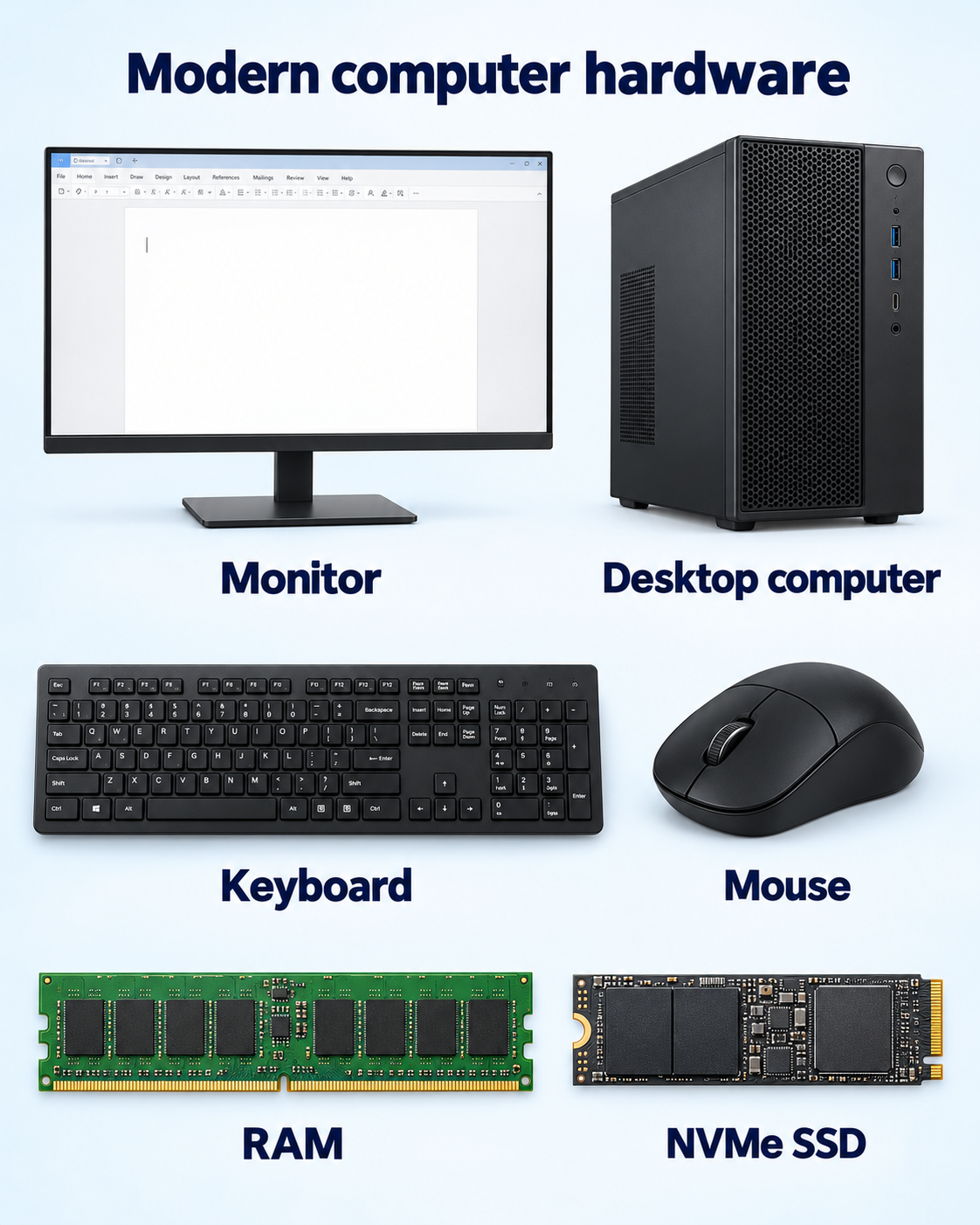
Hardware is the physical equipment. Software is the set of instructions that makes it useful. Identify the screen, keyboard, processor, memory and storage.
Worked example
A browser is software. Its window appears on a physical screen. When you open several browser tabs, they use RAM; a downloaded file occupies storage.
Try it yourself
List five items you use with a computer and label each hardware or software.
This visual recap supports the full lesson. It is not an instructor recording.
What happens when you type a job application?
You press a key, words appear on the screen and you save your application. Four things work together to make this happen.
- Hardware: physical equipment you can touch, such as your keyboard and screen.
- Software: instructions that tell the computer what to do. Your browser opens websites; a writing app helps you create documents.
- RAM: memory holding the work the computer is using right now. Unsaved work can disappear when the power goes off.
- Storage: an SSD or hard drive keeps saved files after shutdown. Save your work before closing the app.
Follow one everyday example
You type your application using a keyboard (hardware). Your writing app (software) follows your instructions. Active work uses RAM. When you save the document, a copy goes into storage so you can open it later.
Try it now: Name one piece of hardware and one app you use. On a phone, the touchscreen is hardware and the browser is software too.
Now check what you learned: Answer three practice questions below. Choose an answer, then press Next Question. The last question shows your score.
Check your understanding
Sample lesson 1 of 3 · 3 practice questions
Pass each sample lesson’s quiz to build your practice progress.
Answer all 3 questions, then check your score below. This is a practice check, not the full course or an official certification exam.
Learn with video
What is a computer and how does it work?
Source: LearnFree · Supplementary video
Watch for: Look for an example related to “Getting to know a computer”. Pause and explain how it connects to this lesson.
For a long course, choose the relevant chapter; you do not need to watch the entire video before continuing. This is a supporting program video and may cover only selected topics; it is not a separate recording of every lesson. Videos are optional; use the written lesson and exercises too.
If playback is unavailable, use the source link. Look for captions or a transcript on the provider’s page.
Optional extra practice · write your answer
Your turn
List five items you use with a computer and label each hardware or software.
Compare your answer
Keyboard, mouse and monitor are hardware. A browser and word processor are software.
More learning options and student rewards
Your sample answer is not submitted. Passed sample quizzes are remembered only in this browser when storage is available; this does not complete the full course or approve a reward.