
Everyday digital tools
Computer / IT fundamentals · Free lesson 3 of 3 · Foundation level · Video 0:32 + practice
Watch the narrated lesson or read the teaching notes, try the worked example, then answer three practice questions. Video: 0:32. Allow about 5–10 additional minutes for the sample activity and quiz, or longer when needed.
Watch this lesson’s visual explainer
32-second silent teaching clip with on-screen text and English captions. Tap Play; pause to read. Full teaching notes follow the visual guide.
Open this lesson video directly
See the steps: Everyday digital tools

Read the video transcript
Understand the idea
Practice creating documents, using spreadsheets, sending clear emails and joining online meetings.
Worked example
A spreadsheet stores information in cells. A student can put expenses in column B and use =SUM(B2:B5) to total four entries.
Try it yourself
Draft an email submitting homework: include a subject, greeting, brief message, attachment mention and closing.
This visual recap supports the full lesson. It is not an instructor recording.
Make a budget, send your work and keep it safe
Imagine you have ₱500 for the week. You want to track spending, email an assignment and protect your schoolwork. Three simple habits help.
- Use a spreadsheet for numbers. Each box is a cell. Formulas calculate totals.
- Check before sending an email. Confirm the recipient, write a clear subject and attach the correct file. Never include your password.
- Keep a separate backup. A second copy on another device or a suitable cloud service helps if the original is lost or the device fails.
Your first useful spreadsheet
A spreadsheet has lettered columns and numbered rows. B2 means column B, row 2. Here is a completed example:
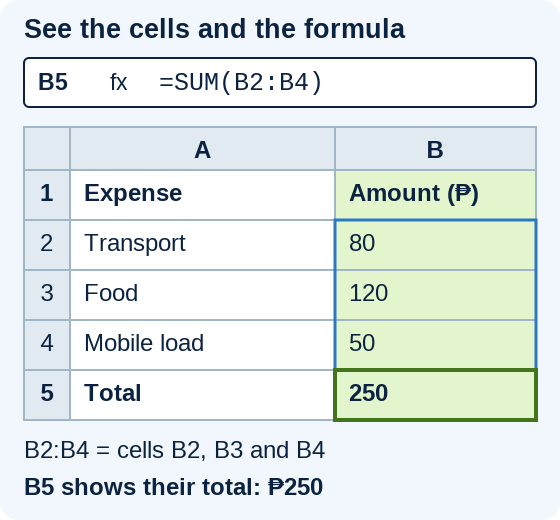
| # | A | B |
|---|---|---|
| 1 | Expense | Amount |
| 2 | Transport | 80 |
| 3 | Food | 120 |
| 4 | Mobile load | 50 |
| 5 | Total | 250 |
Formula in B5: =SUM(B2:B4)
This adds B2, B3 and B4: 80 + 120 + 50 = ₱250. The green cell B5 displays the result, 250. From a ₱500 budget, you have ₱250 left.
To try this in Excel or Google Sheets, copy the labels into column A and the numbers into column B, then enter the formula in B5. This table is a worked example, not an editable spreadsheet.
Send your assignment confidently
When emailing your assignment, use a subject such as Networking Lab 01 — Submission. Attach your report and open the attachment to check it is the correct version before sending.
Try it now: Add three expenses on paper or in a spreadsheet. Then name a place where you could keep a separate backup of your assignment.
Now check what you learned: Answer three practice questions below. Choose an answer, then press Next Question. The last question shows your score.
Check your understanding
Sample lesson 3 of 3 · 3 practice questions
Pass each sample lesson’s quiz to build your practice progress.
Answer all 3 questions, then check your score below. This is a practice check, not the full course or an official certification exam.
Learn with video
What is a computer and how does it work?
Source: LearnFree · Supplementary video
Watch for: Look for an example related to “Everyday digital tools”. Pause and explain how it connects to this lesson.
For a long course, choose the relevant chapter; you do not need to watch the entire video before continuing. This is a supporting program video and may cover only selected topics; it is not a separate recording of every lesson. Videos are optional; use the written lesson and exercises too.
If playback is unavailable, use the source link. Look for captions or a transcript on the provider’s page.
Optional extra practice · write your answer
Your turn
Draft an email submitting homework: include a subject, greeting, brief message, attachment mention and closing.
Compare your answer
Example subject: Networking assignment — Maria Santos. The message should identify the assignment and mention the attached file.
More learning options and student rewards
Your sample answer is not submitted. Passed sample quizzes are remembered only in this browser when storage is available; this does not complete the full course or approve a reward.