
Files and operating systems
Computer / IT fundamentals · Free lesson 2 of 3 · Foundation level · Video 0:32 + practice
Watch the narrated lesson or read the teaching notes, try the worked example, then answer three practice questions. Video: 0:32. Allow about 5–10 additional minutes for the sample activity and quiz, or longer when needed.
Watch this lesson’s visual explainer
32-second silent teaching clip with on-screen text and English captions. Tap Play; pause to read. Full teaching notes follow the visual guide.
Open this lesson video directly
See the steps: Files and operating systems

Read the video transcript
Understand the idea
An operating system manages applications, devices and files. Use meaningful filenames and folders so you can find and back up your work.
Worked example
A folder named Schoolwork can contain a subfolder called Networking. A file named network-diagram-v1.pdf is easier to identify than document123.pdf.
Try it yourself
Design a folder structure for three courses and write a meaningful filename for your first assignment.
This visual recap supports the full lesson. It is not an instructor recording.
Can you find your assignment in ten seconds?
You finished a report yesterday. Today you need to send it—but which file is the right one? Clear names and folders make this easier.
- A file is a saved item: a report, photo or spreadsheet.
- A folder groups related files. Create a Schoolwork folder, then a folder for each course.
- An operating system, such as Windows, macOS or Android, manages apps, devices and files. Its file manager helps you organize your work.
See how it looks on your device
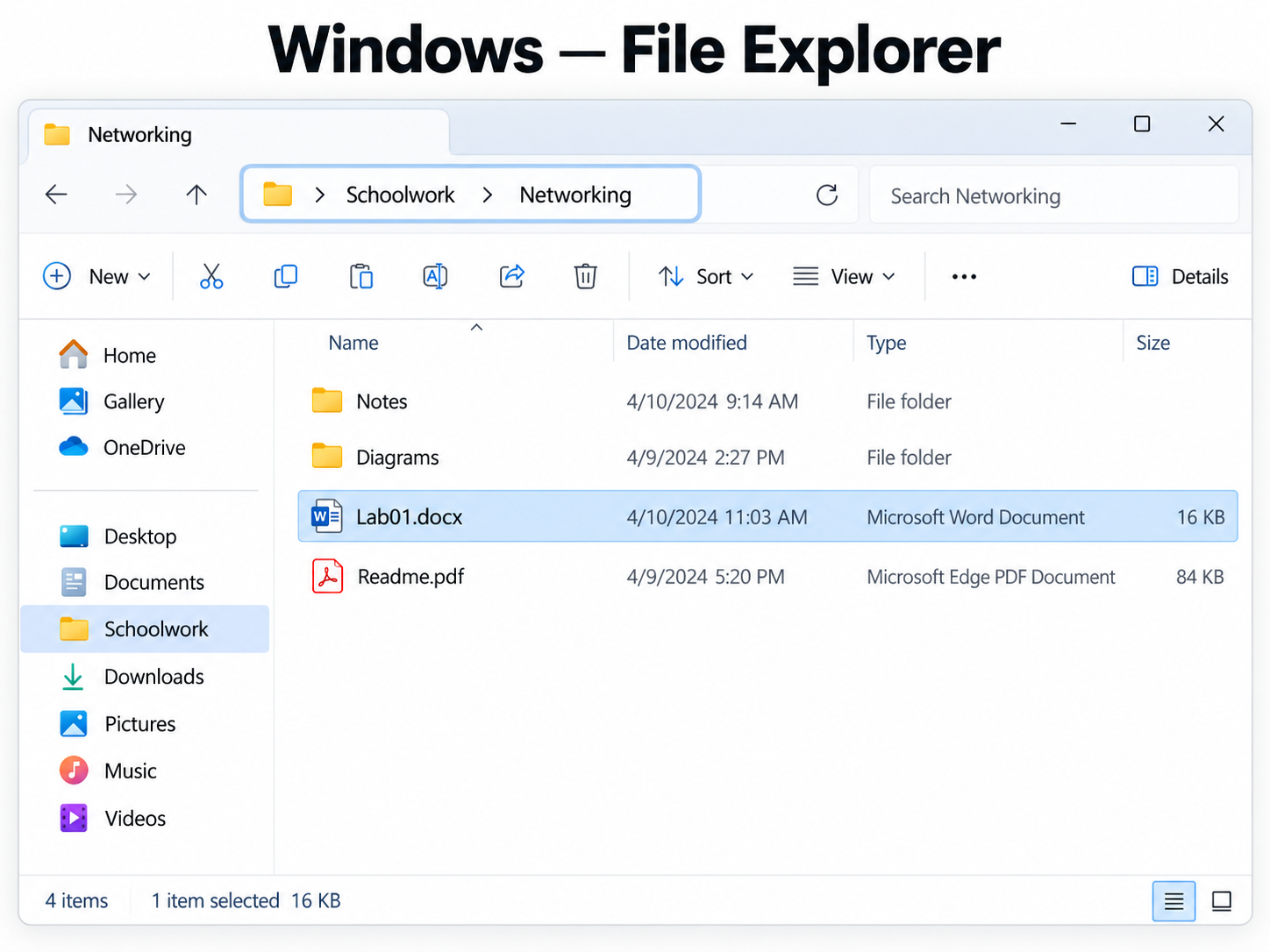
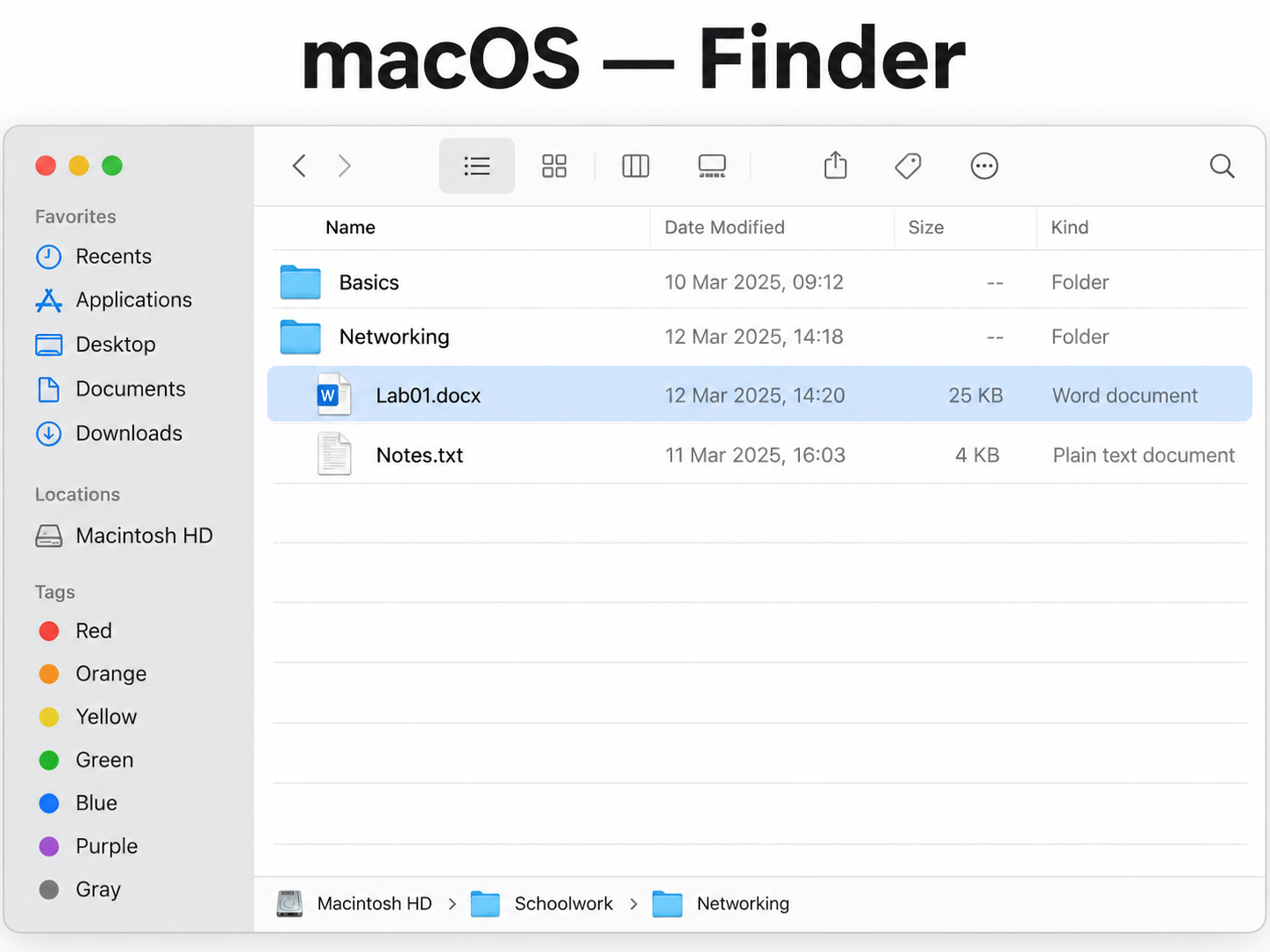
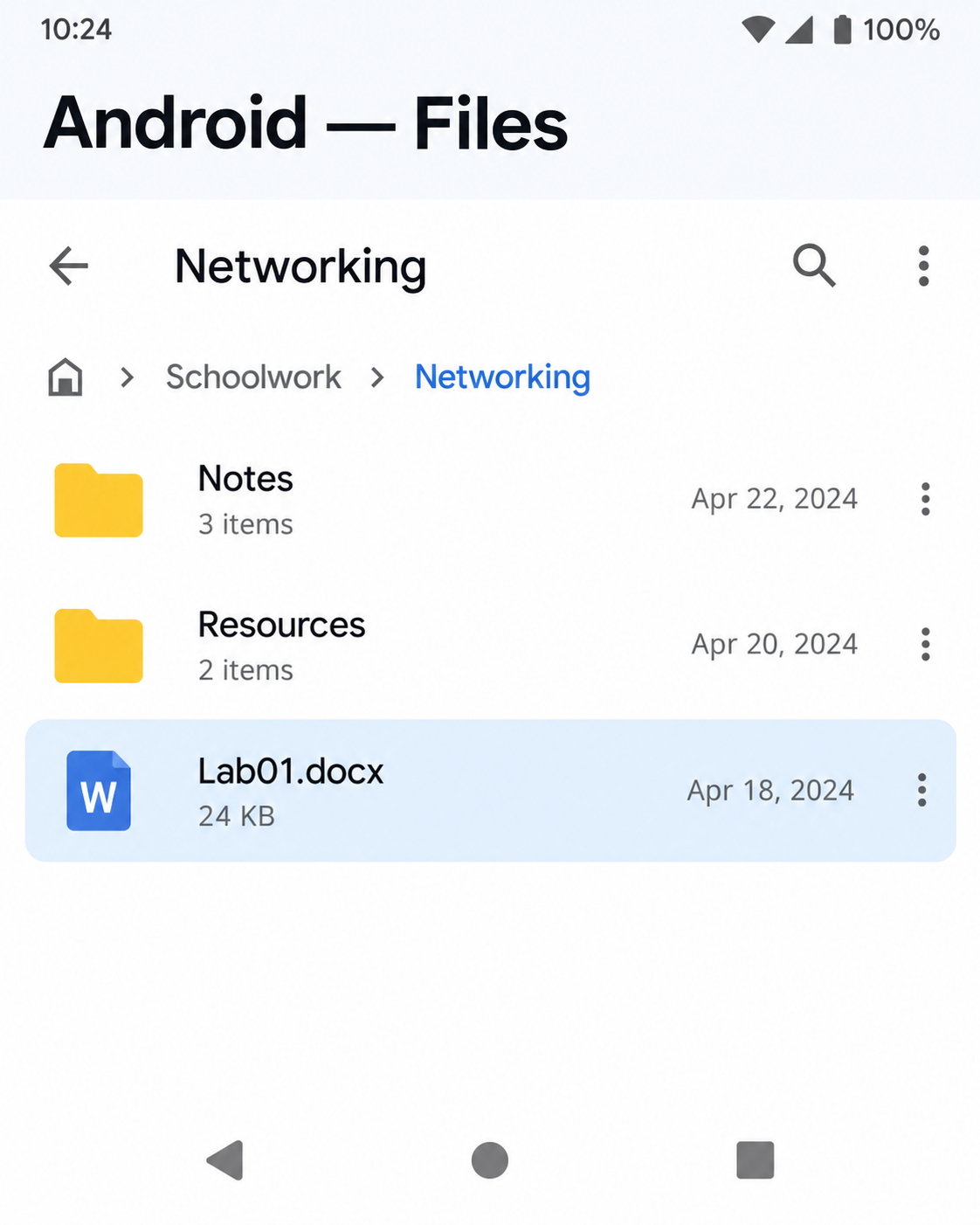
The same idea works on different operating systems: open a folder, open its course folder, then find the document. These are interface examples; appearance and app names may vary by device and version.
Windows · File Explorer
Open File Explorer. Open your Schoolwork folder, then Networking. Select Lab01.docx to find your report.
Apple macOS · Finder
Open Finder on your Mac. Find your Schoolwork folder, open Networking, then select Lab01.docx.
Android · Files
Open the Files app on your phone. Browse to where you saved Schoolwork, open Networking, then tap Lab01.docx. Opening the report may require a compatible document app.
Give your report a name you can recognize
Instead of final-final-new.docx, use Networking_Lab01_2026-10-08.docx. The topic, lab number and date tell you what it contains. Keep it in Schoolwork → Networking.
The .docx ending identifies a Word document. Changing an ending alone does not convert a file.
Try it now: Think of a file you often lose. Give it a clear name and decide which folder it belongs in. On a shared computer, ask before moving someone else’s files.
Now check what you learned: Answer three practice questions below. Choose an answer, then press Next Question. The last question shows your score.
Check your understanding
Sample lesson 2 of 3 · 3 practice questions
Pass each sample lesson’s quiz to build your practice progress.
Answer all 3 questions, then check your score below. This is a practice check, not the full course or an official certification exam.
Learn with video
What is a computer and how does it work?
Source: LearnFree · Supplementary video
Watch for: Look for an example related to “Files and operating systems”. Pause and explain how it connects to this lesson.
For a long course, choose the relevant chapter; you do not need to watch the entire video before continuing. This is a supporting program video and may cover only selected topics; it is not a separate recording of every lesson. Videos are optional; use the written lesson and exercises too.
If playback is unavailable, use the source link. Look for captions or a transcript on the provider’s page.
Optional extra practice · write your answer
Your turn
Design a folder structure for three courses and write a meaningful filename for your first assignment.
Compare your answer
Use one top-level school folder, one folder per course and a filename describing the task. Keep a second copy of important work.
More learning options and student rewards
Your sample answer is not submitted. Passed sample quizzes are remembered only in this browser when storage is available; this does not complete the full course or approve a reward.