Free online learning · Course preview

Computer hardware & troubleshooting

Understand computer components and practice diagnosing common hardware issues.

Skills you will build: Identify common components and follow a repeatable troubleshooting process.

Before you start: Computer fundamentals recommended

Suggested study time: 72 hours · self-paced

Equipment: Spare computer or hardware diagrams; physical work only on authorized, powered-down equipment with supervision.

Your first project: Given a simulated computer that will not start, write a safe checklist covering power, cables and error messages.

Try a free lessonCreate your free account
See it · Try it · Explain it

Picture the idea

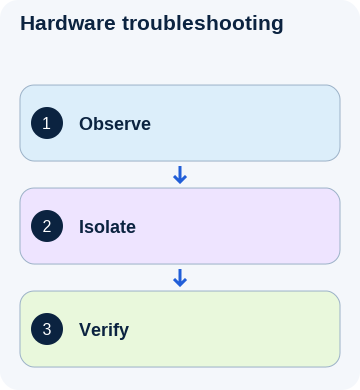
Observe → Isolate → Verify
Record the symptom, change one safe test condition, then check the result.

Connect it to this lesson: Computer hardware & troubleshooting. Identify where the idea fits in the map, then explain it using the lesson’s example. This is a program-level concept map; the written lesson provides the specific detail.

Mini challenge · predict before revealing

A monitor is blank. What is a useful first observation?

Choose one answer

Explain the answer

Begin with observable evidence; a blank display alone does not identify a failed part.

Practice only. This does not change course progress, certificates or reward eligibility. Explain the answer without looking before moving on.

Course Outline

Explore all 20 lessons, with teaching notes, examples, practical exercises and knowledge checks. The first three lessons are free to preview without an account.

20 lessons · Learn in order at your own pace
LessonStudy timeAccess
Core foundations
1. Computer components1 hr 55 minTry free →
2. Safe equipment handling1 hr 55 minTry free →
3. Troubleshooting method1 hr 55 minTry free →
4. Maintenance and recovery1 hr 55 minStudent account
5. Boot process and firmware1 hr 55 minStudent account
6. Compatibility and upgrade planning1 hr 55 minStudent account
7. Drivers, disks and OS diagnostics1 hr 55 minStudent account
8. Repair workflow and acceptance1 hr 55 minStudent account
Applied tools and workflows
9. Reading specifications and compatibility2 hrs 55 minStudent account
10. Boot sequence and firmware2 hrs 55 minStudent account
11. Memory capacity and diagnostic evidence2 hrs 55 minStudent account
12. Storage health and replacement planning2 hrs 55 minStudent account
Troubleshooting and verification
13. Power symptoms and safe escalation2 hrs 55 minStudent account
14. Cooling and airflow diagnosis2 hrs 55 minStudent account
15. Peripherals, drivers and device detection2 hrs 55 minStudent account
16. Operating-system installation planning2 hrs 55 minStudent account
Project and professional practice
17. Laptop service limits and batteries2 hrs 55 minStudent account
18. Maintenance records and change control2 hrs 55 minStudent account
19. Hardware incident case study2 hrs 55 minStudent account
20. Final repair plan and demonstration3 hrsStudent account

Study time includes extended reading and practice. Free sample previews take about 15–25 minutes each. Create a free account to continue with the full course.

Sample topics and lessons

Computer components

Full lesson study allowance: 1 hr 55 min · Free preview: about 15–25 minutes

The CPU processes instructions, RAM holds active work and storage keeps files. Different components solve different performance needs.

Practice activity: Explain why adding a larger disk does not always fix a slow computer.

Open sample lesson 1

Safe equipment handling

Full lesson study allowance: 1 hr 55 min · Free preview: about 15–25 minutes

Power down and disconnect equipment before opening it. Follow manufacturer instructions and use appropriate electrostatic-discharge precautions; never open a power supply.

Practice activity: Write a safe first step for opening a practice desktop, and identify one component you must not open.

Open sample lesson 2

Troubleshooting method

Full lesson study allowance: 1 hr 55 min · Free preview: about 15–25 minutes

Record the symptom, check simple causes, change one thing at a time and test the result. Keep notes so someone else can follow your work.

Practice activity: A monitor displays “No signal.” List three checks in order without opening equipment.

Open sample lesson 3
Optional video revision

Watch & review before your quiz

Laptop hardware · components and replacement

Source: Professor Messer · Supplementary video

Watch for: Choose a topic you want to revise. Pause and explain the idea in your own words, then try the quiz without the video.

For a long course, choose the relevant chapter; you do not need to watch the entire video before continuing. This is a supporting program video and may cover only selected topics; it is not a separate recording of every lesson. Videos are optional; use the written lesson and exercises too.

Watch on the source website ↗

If playback is unavailable, use the source link. Look for captions or a transcript on the provider’s page.

Try a sample practice quiz

Answer all 3 questions, then check your score below. This is a practice check, not the full course or an official certification exam.

Question 1 of 3: Before touching internal components, which is best?

Question 1 of 3

Build a portfolio project

Diagnose three prepared cases: no display, slow workstation and storage nearly full. For each, document the symptom, safe test sequence, evidence, proposed repair and verification.

Save progress, practice with quizzes and earn an M.E.T. foundation completion certificate. External professional certifications have separate requirements.
Need help choosing a program?